Difference between revisions of "Synchronize routes with your iOS device/pt"
Jump to navigation
Jump to search

(Created page with "<br /> ---- As rotas criadas em Air Navigation Desktop podem ser facilmente '''copiadas num iPad ou num iPhone''' seguindo os passos seguintes: * Entrar com sua conta de Xampl...") |
(Created page with "caption|left As rotas armazenadas na aba Library TAB '''NÃO''' serão transferidas.") |
||
| (4 intermediate revisions by the same user not shown) | |||
| Line 20: | Line 20: | ||
| − | [[File:danger.jpg|caption]] | + | [[File:danger.jpg|caption]] O computador Mac e o dispositivo iOS devem estar conectados à mesma rede wifi. |
| − | |||
| Line 30: | Line 29: | ||
| − | * | + | * A partir da aba “Mission”, vá a '''«Sync with devices»''' |
| − | * | + | * Selecione o dispositivo e clique na '''opção «Synchronize»''' |
| − | <br/> | + | <br /> |
[[File:routes_mac3.jpg]] | [[File:routes_mac3.jpg]] | ||
| − | + | Todas as rotas da missão serão copiadas no dispositivo iOS. | |
| − | <u> | + | <br /> |
| + | <u>Exemplo:</u> se tiver uma missão com três vôos diferentes, os três vôos serão enviados ao iPad/iPhone. | ||
| − | [[File:danger.jpg|caption|left]] | + | [[File:danger.jpg|caption|left]] As rotas armazenadas na aba Library TAB '''NÃO''' serão transferidas. |
---- | ---- | ||
| − | <br/> | + | <br /> |
| − | + | Voltar ao <u>[[Air Navigation Desktop/pt|índice]]</u> | |
<br /> | <br /> | ||
Latest revision as of 19:19, 27 November 2015
As rotas criadas em Air Navigation Desktop podem ser facilmente copiadas num iPad ou num iPhone seguindo os passos seguintes:
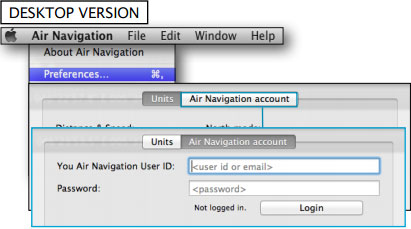
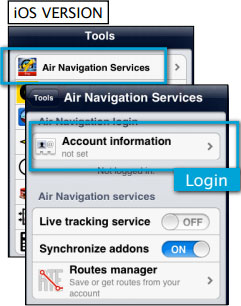
- Entrar com sua conta de Xample Services em Air Nav Desktop e também no dispositivo iOS.


 O computador Mac e o dispositivo iOS devem estar conectados à mesma rede wifi.
- A partir da aba “Mission”, vá a «Sync with devices»
- Selecione o dispositivo e clique na opção «Synchronize»

Todas as rotas da missão serão copiadas no dispositivo iOS.
Exemplo: se tiver uma missão com três vôos diferentes, os três vôos serão enviados ao iPad/iPhone.
As rotas armazenadas na aba Library TAB NÃO serão transferidas.
Voltar ao índice
