Difference between revisions of "Translations:Map Store/3/en"
Jump to navigation
Jump to search
(Importing a new version from external source) |
(Importing a new version from external source) |
||
| Line 3: | Line 3: | ||
;All my products | ;All my products | ||
:
It shows all the purchased charts, maps and data and the free products downloaded by the user, too. If you reinstall the application or lose a map, here you will get it back.
It also allows you to sync the products purchased on the Android version.
| :
It shows all the purchased charts, maps and data and the free products downloaded by the user, too. If you reinstall the application or lose a map, here you will get it back.
It also allows you to sync the products purchased on the Android version.
| ||
| − | ;Catalog
[[File:MapStore_2.png| | + | ;Catalog
[[File:MapStore_2.png|caption|right|200px]] |
: It is divided into two parts: | : It is divided into two parts: | ||
*by country: you can choose the country you are interested in and it will show all the charts/maps and data available for that country.
| *by country: you can choose the country you are interested in and it will show all the charts/maps and data available for that country.
| ||
Revision as of 16:45, 20 October 2015
- Installed products
- It shows the charts, maps and data that is currently installed in the app.
- All my products
- It shows all the purchased charts, maps and data and the free products downloaded by the user, too. If you reinstall the application or lose a map, here you will get it back. It also allows you to sync the products purchased on the Android version.
- Catalog
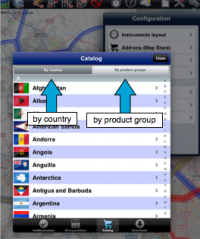
- It is divided into two parts:

- by country: you can choose the country you are interested in and it will show all the charts/maps and data available for that country.
- by product groups: it will show the products by their category.
- Downloads
- It lists current and pending downloads. This module is typically used to monitor download progression of a product. It is possible to reorder/delete the downloads or cancel all by pressing on the Edit button located on the upper left corner.
Back to index
