Difference between revisions of "Create custom waypoint/es"
(Created page with "---- Hay dos maneras de crear un waypoints del usuario: * '''Presionando durante tres segundos''' sobre un punto específico caption|rightEn el mapa. Pr...") |
(Created page with "<br /> ---- <u>'''Nota:'''</u> hay dos formas de borrar un waypoint creado por un usuario: * Deslizando un dedo de derecha a izquierda sobre el nombre del waypoint provocará...") |
||
| Line 18: | Line 18: | ||
| − | <br/> | + | <br /> |
---- | ---- | ||
| − | <u>''' | + | <u>'''Nota:'''</u> hay dos formas de borrar un waypoint creado por un usuario: |
| − | * | + | * Deslizando un dedo de derecha a izquierda sobre el nombre del waypoint provocará que el [[File:Customwpdelete.jpg|left|caption|170px]]botón "Eliminar" aparezca. |
Revision as of 16:02, 29 October 2015
Hay dos maneras de crear un waypoints del usuario:
- Presionando durante tres segundos sobre un punto específico En el mapa. Presionar sobre "Agregar a la base de datos" y desde allí ingresar los datos requeridos por la aplicación. Si se ha seleccionado Aeródromo como "Tipo" sera capaz de agregar las informaciones sobre las pistas y frecuencias del mismo.
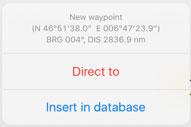

- El waypoint creado aparecerá en el mapa y desde el menu "Herramientas - Waypoints de usuario".
- Agregando las coordenadas exactas o usando su posición actual.

Ir a "Herramientas - Waypoints de usuario".
Nota: hay dos formas de borrar un waypoint creado por un usuario:
- Deslizando un dedo de derecha a izquierda sobre el nombre del waypoint provocará que el botón "Eliminar" aparezca.


- Under Custom waypoints editor tap "Edit" at the upper right corner and choose "Remove waypoints".


From the Edit mode you will also be able to back-up your

waypoints and restore them or copy them to another device.

In order to do this, you have to connect the device to a computer and go into iTunes.
Select the device on the upper bar and then select "Apps" from the menu on the left.
At the botton of this page you will find the "File Sharing" menu. Select Air Navigation Pro from there and save the "Backup.sql" file.

Move this file to the new device in the same way through the "File Sharing" option of iTunes. Then, select in the new device the option "Restore Waypoints".

Back to index.
