Difference between revisions of "Create custom waypoint/fr"
(Created page with "---- Il y a deux manières de créer un waypoint personnalisé: * En '''restant appuyé trois secondes''' sur un point spécifique caption|rightsur la...") |
(Created page with "<br /> ---- <u>'''Note:'''</u> il y a deux manières d’effacer un waypoint personnalisé: * Faire glisser de droite à gauche le nom du waypoint, ce qui fera File:Customwp...") |
||
| Line 18: | Line 18: | ||
| − | <br/> | + | <br /> |
---- | ---- | ||
| − | <u>'''Note:'''</u> | + | <u>'''Note:'''</u> il y a deux manières d’effacer un waypoint personnalisé: |
| − | * | + | * Faire glisser de droite à gauche le nom du waypoint, ce qui fera [[File:Customwpdelete.jpg|left|caption|170px]]apparaître un bouton "Effacer". Cliquez dessus une fois et il sera supprimé. |
Revision as of 14:59, 20 November 2015
Il y a deux manières de créer un waypoint personnalisé:
- En restant appuyé trois secondes sur un point spécifique sur la carte. Sélectionnez "Ajouter à la base de données", et entrer les paramètres demandés par l’application. Si vous sélectionnez Aérodrome sous "Type" vous pourrez alors entrer les informations des pistes et des fréquences.
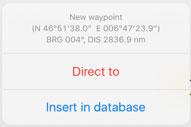

- Le waypoint créé apparaîtra alors sur la carte sous "Outils - Éditeur de Waypoints".
- En ajoutant les coordonnées exactes de votre position actuelle.

Allez sous "Outils - Editeur de Waypoint".
Note: il y a deux manières d’effacer un waypoint personnalisé:
- Faire glisser de droite à gauche le nom du waypoint, ce qui fera apparaître un bouton "Effacer". Cliquez dessus une fois et il sera supprimé.


- Under Custom waypoints editor tap "Edit" at the upper right corner and choose "Remove waypoints".


From the Edit mode you will also be able to back-up your

waypoints and restore them or copy them to another device.

In order to do this, you have to connect the device to a computer and go to iTunes.
Select the device on the upper bar and then select "Apps" from the menu on the left.
At the bottom of this page you will find the "File Sharing" menu. Select Air Navigation Pro from there and save the "Backup.sql" file.

Move this file to the new device in the same way through the "File Sharing" option of iTunes. Then, select the option "Restore Waypoints" in the new device.

Back to index.
